SpyGlass Developer Guide
Acknowledgements
This project is a modified version of AddressBook-Level 3 (AB3), created by the SE-EDU initiative.
- Original Source: AddressBook-Level 3
- Third-party libraries used: JavaFX, Jackson, JUnit5
Setting up, getting started
Refer to the guide Setting up and getting started.
Design
Architecture
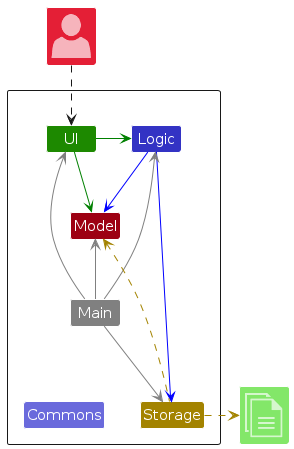
The Architecture Diagram given above explains the high-level design of the App.
Given below is a quick overview of main components and how they interact with each other.
Main components of the architecture
Main (consisting of classes Main and MainApp) is in charge of the app launch and shut down.
- At app launch, it initializes the other components in the correct sequence, and connects them up with each other.
- At shut down, it shuts down the other components and invokes cleanup methods where necessary.
The bulk of the app's work is done by the following four components:
UI: The UI of the App.Security: Validates password presence and handles initial configuration.Logic: The command executor and handler for App Mode.Model: Holds the data of the App in memory.Storage: Reads data from, and writes data to, the hard disk.
Commons represents a collection of classes used by multiple other components.
How the architecture components interact with each other
The Sequence Diagram below shows how the components interact with each other for the scenario where the user issues the command delete 1.
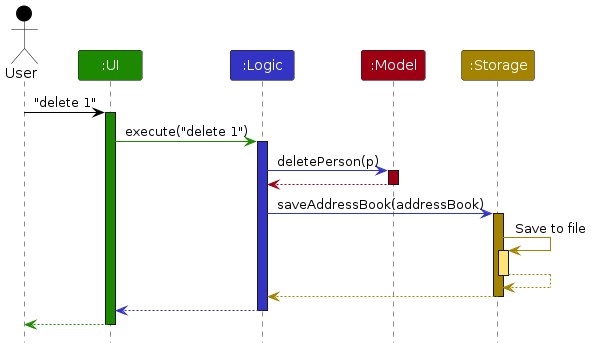
Each of the four main components (also shown in the diagram above),
- defines its API in an
interfacewith the same name as the Component. - implements its functionality using a concrete
{Component Name}Managerclass (which follows the corresponding APIinterfacementioned in the previous point.
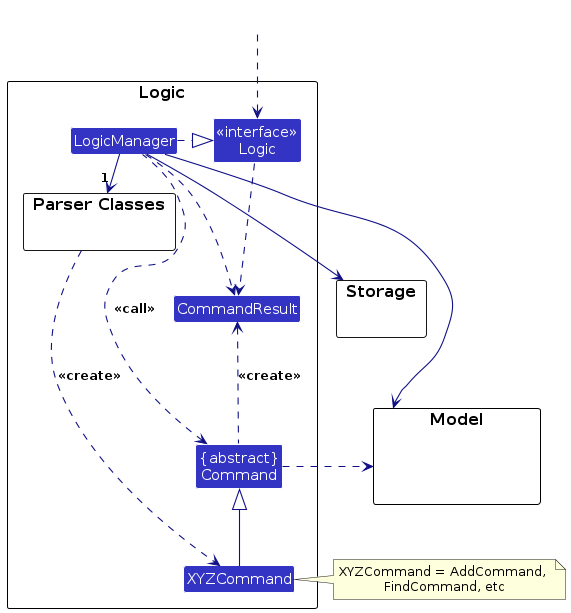
For example, the Logic component defines its API in the Logic.java interface and implements its functionality using the LogicManager.java class which follows the Logic interface. Other components interact with a given component through its interface rather than the concrete class (reason: to prevent outside component's being coupled to the implementation of a component), as illustrated in the (partial) class diagram below.
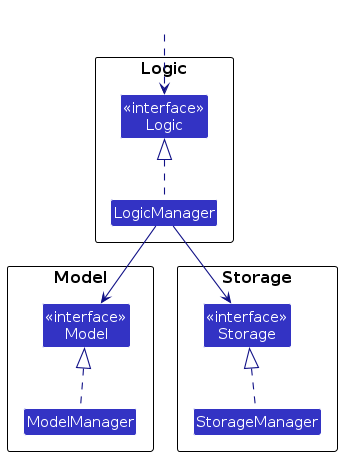
The sections below give more details of each component.
UI component
The API of this component is specified in Ui.java
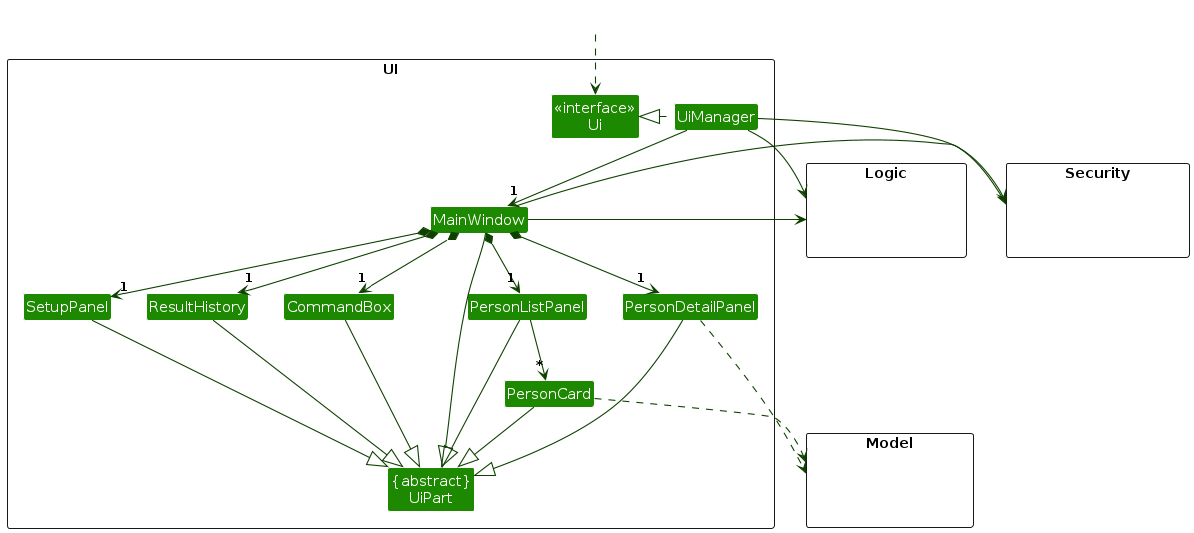
The UI consists of a MainWindow that is made up of parts e.g.CommandBox, CommandHistory, PersonListPanel, StatusBarFooter etc. All these, including the MainWindow, inherit from the abstract UiPart class which captures the commonalities between classes that represent parts of the visible GUI.
The UI component uses the JavaFx UI framework. The layout of these UI parts are defined in matching .fxml files that are in the src/main/resources/view folder. For example, the layout of the MainWindow is specified in MainWindow.fxml
The UI component,
- executes user commands using the
Logiccomponent. - listens for changes to
Modeldata so that the UI can be updated with the modified data. - keeps a reference to the
Logiccomponent, because theUIrelies on theLogicto execute commands. - depends on some classes in the
Modelcomponent, as it displaysPersonobject residing in theModel.
Security component
API : Security.java
The Security component is responsible for the application's integrity check upon startup.
- Integrity Check: Verifies if the
passwordfield in the storage file is present and contains valid characters (not just empty or whitespace). - Startup Logic: Returns a status to
Mainindicating whether the application should proceed to the Password Setup screen or the standard Locked Mode. - Note: It does not handle runtime password verification for restricted commands; that is delegated to the
LogicandModelcomponents.
The sequence diagram below illustrates the interactions during the startup phase, showing how the Security component determines the initial UI state.
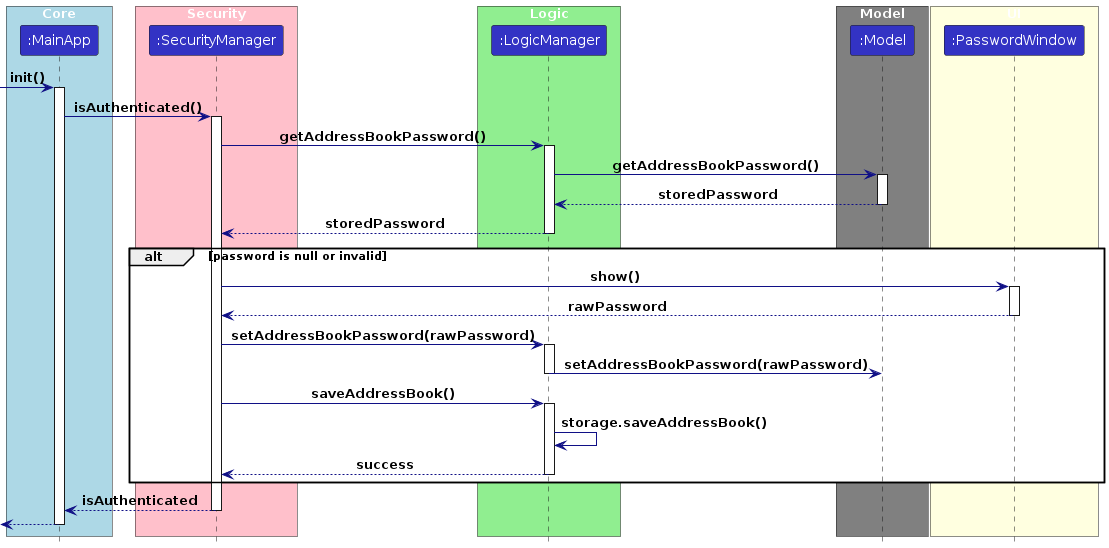
How the startup check works:
MainAppcallsSecurity#getStartupStatus().SecurityqueriesStoragefor the current password configuration.- Based on the result (valid password vs. empty/missing),
Securityreturns a status code. MainAppthen initializes either theMainWindowor thePasswordSetupWindowbased on that status.
Logic component
API : Logic.java
Here's a (partial) class diagram of the Logic component:
The sequence diagram below illustrates the interactions within the Logic component, taking execute("delete 1") API call as an example.

Note: The lifeline for DeleteCommandParser should end at the destroy marker (X) but due to a limitation of PlantUML, the lifeline continues till the end of diagram.
Unlock Command Example
The sequence diagram below illustrates the interactions within the Logic component for a state-changing command, taking execute("unlock myPassword123") API call as an example.
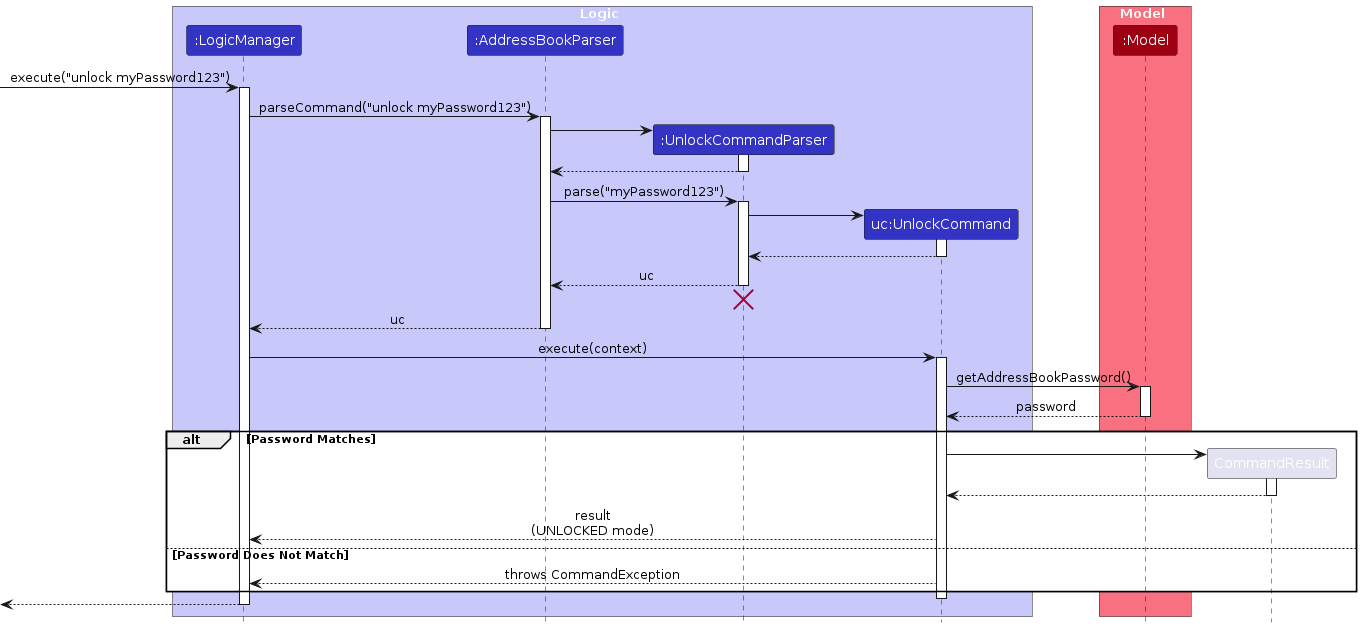
This diagram shows how the UnlockCommand validates a password against the stored credentials in the Model and transitions the application to the UNLOCKED state upon successful authentication.
How the Logic component works:
- When
Logicis called upon to execute a command, it is passed to anAddressBookParserobject which in turn creates a parser that matches the command (e.g.,DeleteCommandParser) and uses it to parse the command. - This results in a
Commandobject (more precisely, an object of one of its subclasses e.g.,DeleteCommand) which is executed by theLogicManager. - The command communicates with the
Modelwhen it is executed (e.g., to delete a person).- App Mode Management:
Logicis also responsible for managing state transitions; it passes the currentAppMode(Locked or Unlocked) down to theModelfor execution.
- App Mode Management:
- The result of the command execution is encapsulated as a
CommandResultobject which is returned back fromLogic.
Here are the other classes in Logic (omitted from the class diagram above) that are used for parsing a user command:
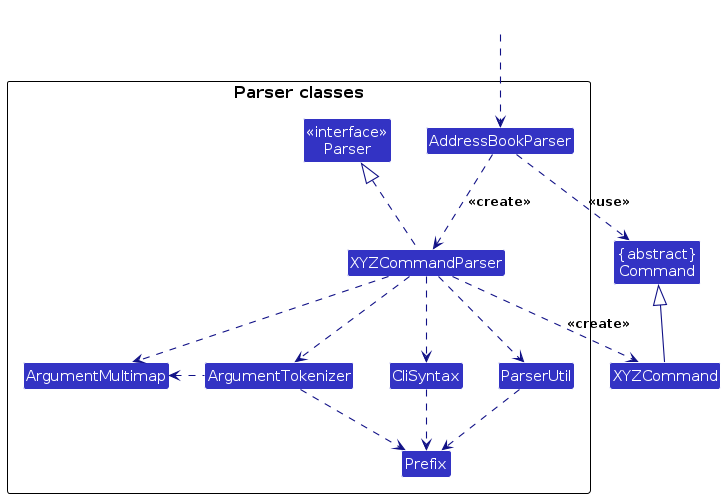
How the parsing works:
- When called upon to parse a user command, the
AddressBookParserclass creates anXYZCommandParser(XYZis a placeholder for the specific command name e.g.,AddCommandParser) which uses the other classes shown above to parse the user command and create aXYZCommandobject (e.g.,AddCommand) which theAddressBookParserreturns back as aCommandobject. - All
XYZCommandParserclasses (e.g.,AddCommandParser,DeleteCommandParser, ...) inherit from theParserinterface so that they can be treated similarly where possible e.g, during testing.
Model component
API : Model.java
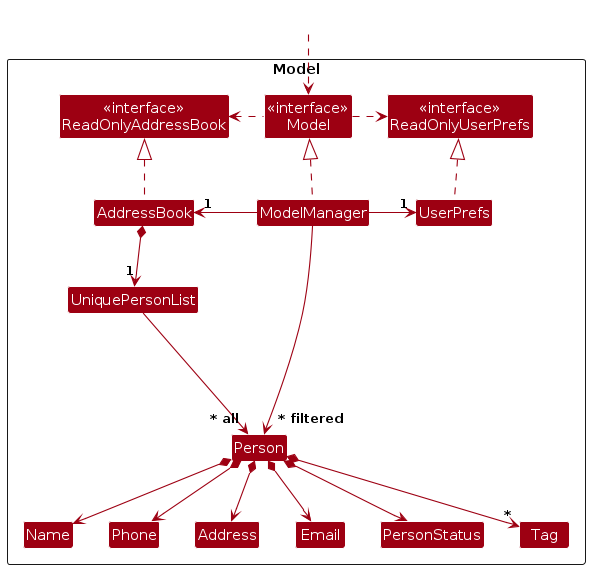
The Model component,
- stores the address book data i.e., all
Personobjects (which are contained in aUniquePersonListobject). - stores the currently 'selected'
Personobjects (e.g., results of a search query) as a separate filtered list which is exposed to outsiders as an unmodifiableObservableList<Person>that can be 'observed' e.g. the UI can be bound to this list so that the UI automatically updates when the data in the list change. - stores a
UserPrefobject that represents the user’s preferences. This is exposed to the outside as aReadOnlyUserPrefobjects. - does not depend on any of the other three components (as the
Modelrepresents data entities of the domain, they should make sense on their own without depending on other components)
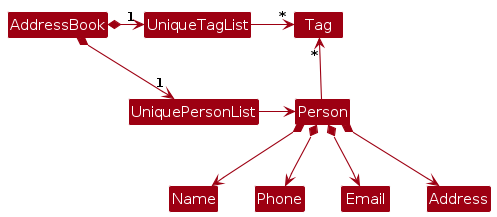
Note: An alternative (arguably, a more OOP) model is given below. It has a Tag list in the AddressBook, which Person references. This allows AddressBook to only require one Tag object per unique tag, instead of each Person needing their own Tag objects.
Storage component
API : Storage.java
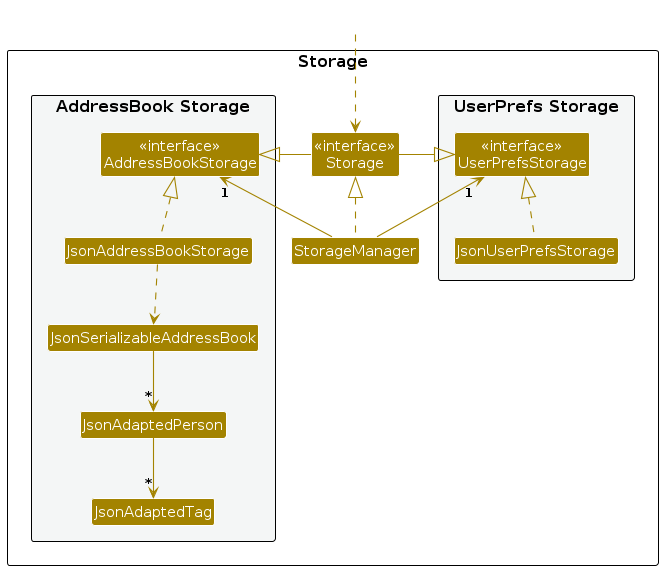
The Storage component,
- can save both address book data and user preference data in JSON format, and read them back into corresponding objects.
- inherits from both
AddressBookStorageandUserPrefStorage, which means it can be treated as either one (if only the functionality of only one is needed). - depends on some classes in the
Modelcomponent (because theStoragecomponent's job is to save/retrieve objects that belong to theModel)
Common classes
Classes used by multiple components are in the seedu.address.commons package.
Documentation, logging, testing, configuration, dev-ops
Appendix: Requirements
Product scope
Target user profile:
- is a social individual in a high-scrutiny domestic environment
- has their digital privacy frequently compromised by an overbearing or possessive partner
- needs to discreetly manage sensitive social connections
- requires a fast interface for the near-instant concealment of private data during unexpected screen checks
- can type incredibly fast and prefers typing to mouse interactions
Value proposition: Spyglass provides a secure interface for managing sensitive contacts hidden from observers. It allows users to categorise private contacts, enabling the concealment of private data through commands that hides sensitive entries. This ensures the application maintains the appearance of a standard address book, providing a layer of plausible deniability.
User Stories
Priorities: High (must have) - * * *, Medium (nice to have) - * *, Low (unlikely to have) - *
| Priority | As a … | I want to … | So that I can… |
|---|---|---|---|
* * * | Contact Manager | add a contact with essential details | store new social connections efficiently. |
* * * | Contact Manager | view a list of public contacts | see my everyday connections at a glance. |
* * * | Discreet Contact Manager | delete sensitive contacts while in Unlocked mode | remove specific records permanently to avoid detection. |
* * * | Discreet Contact Manager | switch to Locked mode instantly | hide private data and display a harmless interface to onlookers. |
* * * | Privacy-Conscious User | set a secure password upon initial launch | ensure only I can access the locked mode of the app. |
* * * | Privacy-Conscious User | unlock the app using a secret password | transition from the public view to my private contact list. |
* * | Contact Manager | edit contact information | keep my records accurate and up to date. |
* * | Discreet Contact Manager | search through hidden contacts by keyword | quickly retrieve sensitive information without manual scrolling. |
{More to be added}
Use cases
(For all use cases below, the System is SpyGlass and the Actor is the user, unless specified otherwise)
Use case: UC1 - Initial password setup
Preconditions: The application is launched for the first time, or the password field in the data file is empty/invalid.
MSS
User launches SpyGlass.
SpyGlass detects no existing password and displays the Password Setup screen.
User enters a new password.
SpyGlass saves the password to the data file.
SpyGlass transitions to the main interface in Locked mode.
Use case ends.
Extensions
3a. The user enters a password consisting only of spaces or leaves it empty.
- 3a1. SpyGlass shows an error message.
- 3a2. SpyGlass prompts the user to enter a valid password again. Use case resumes at step 3.
4a. SpyGlass fails to write to the data file.
- 4a1. SpyGlass shows an error message indicating a storage failure. Use case ends.
Use case: UC2 - Lock application
Preconditions: User is in Unlocked mode.
MSS
User decides to hide their private contacts.
User enters the command
lock.SpyGlass switches the UI from Unlocked mode to Locked mode.
SpyGlass continues operating as a normal-looking addressbook application.
Use case ends.
Extensions
- 3a. The user performs operations while the system is locked.
- 3a1. SpyGlass accepts the operation.
- 3a2. SpyGlass stores the data in Locked mode storage instead of Unlocked mode storage. Use case ends.
Use case: UC3 - Unlock application
MSS
User is currently interacting with the Locked mode.
User enters the secret password previously set.
SpyGlass switches the UI from Locked mode to Unlocked mode.
SpyGlass loads the Unlocked mode contact list and shows a success message.
Use case ends.
Extensions
- 3a. The entered password is incorrect.
- 3a1. SpyGlass remains in Locked mode.
- 3a2. SpyGlass displays an "unknown command" message to mask the app's capabilities. Use case ends.
Use case: UC4 - Add a contact
MSS
User requests to add a contact with required details.
User adds the new contact with relevant details.
SpyGlass saves the new contact to the current mode's storage and updates the display.
SpyGlass updates the command history to show the user added a new contact.
Use case ends.
Extensions
3a. A required parameter is missing.
- 3a1. SpyGlass shows an error message indicating the missing parameter. Use case ends.
3b. A parameter fails validation.
- 3b1. SpyGlass shows the corresponding validation error message. Use case ends.
4a. The contact already exists in the current mode.
- 4a1. SpyGlass shows an error message indicating the contact already exists. Use case ends.
Use case: UC5 - Delete a contact
MSS
User requests to delete a specific contact in the list by index.
SpyGlass deletes the contact from the current mode's storage.
SpyGlass updates the contact list display.
SpyGlass updates the command history to reflect the user deleted a contact.
Use case ends.
Extensions
1a. The given index is invalid.
- 1a1. SpyGlass shows an error message. Use case resumes at step 2.
2a. SpyGlass fails to save the deletion to storage.
- 2a1. SpyGlass shows an error message indicating storage failed.
Use case ends.
{More to be added}
Non-Functional Requirements
- Should work on any mainstream OS as long as it has Java
17or above installed. - Should be able to hold up to 1000 persons without a noticeable sluggishness in performance for typical usage.
- A user with above average typing speed for regular English text (i.e. not code, not system admin commands) should be able to accomplish most of the tasks faster using commands than using the mouse.
- While in locked mode, the application name must not contain the words "Spy" or "Secret" to avoid detection.
- While in locked mode, restricted commands must not provide any visual feedback that hints at the existence of a hidden mode.
{More to be added}
Glossary
- Mainstream OS: Windows, Linux, Unix, MacOS.
- Private contact detail: Information that is meant to be hidden from unauthorized users.
- Locked Mode: The default, public state of the app. It displays as a standard "AddressBook" to hide its true purpose.
- Unlocked Mode: The secure state revealed after entering a password, showing private contacts.
- Locked Mode Storage: A public database that saves contacts added while the app is locked.
- Unlocked Mode Storage: A hidden database where sensitive contacts are kept.
- Restricted Command: A command that only works in one specific mode (e.g.,
lockonly works when the app is Unlocked). - Unrestricted Command: A command that functions in both Locked and Unlocked modes.
- Index: A number representing a contact's position in the current list on the screen.
Appendix: Instructions for manual testing
Given below are instructions to test the app manually.
Note: These instructions only provide a starting point for testers to work on; testers are expected to do more exploratory testing.
Launch and Password Setup
Initial launch and setup
- Download the jar file and copy it into an empty folder.
- Open a terminal and run
java -jar addressbook.jar. - Expected: Instead of the main contact list, a Password Setup screen appears.
- Enter a password (e.g.,
myPassword123) and confirm it. - Expected: The app transitions to the main GUI in Locked mode (window title shows "AddressBook"). Sample contacts are visible.
Invalid Password Setup
- Delete the
data/addressbook.jsonfile to reset the app. - Launch the app again.
- Try entering a password consisting only of spaces.
- Expected: An error message is shown. The app does not proceed to the main interface.
- Delete the
Authentication (Lock/Unlock)
Unlocking the app
- Prerequisites: App is in Locked mode.
- Test case:
unlock myPassword123(using the password set during setup). - Expected: App switches to Unlocked mode. The secret contact list is displayed.
- Test case:
unlock wrongPassword. - Expected: App remains in Locked mode. An
Unknown commandmessage is shown to mask the authentication attempt.
Locking the app
- Prerequisites: App is in Unlocked mode.
- Test case:
lock. - Expected: App immediately switches back to Locked mode. Secret contacts are hidden, and the public contact list is shown.
Deleting a Person
- Deleting a person
- Prerequisites: Ensure there are multiple contacts in the current list.
- Test case:
delete 1. - Expected: The first contact in the secret list is deleted. Success message shown in the status box.
Saving Data
- Dealing with missing/corrupted data files
- Missing File: Delete
data/addressbook.json. Launch the app.- Expected: App treats this as a fresh install and prompts for password setup.
- Corrupted JSON: Open
data/addressbook.jsonand remove a bracket or quote to make the JSON invalid.- Expected: SpyGlass clears the corrupted data and starts with an empty file/password setup prompt.
- Empty Password Field: Manually edit the JSON file to set the
passwordfield to"".- Expected: On next launch, the app prompts the user to set a new password.
- Missing File: Delete
Window Preferences
Saving window state
- Resize the window and move it to a new corner of your screen. Close the app.
- Re-launch the app.
- Expected: The app opens with the previous size and position.
{ more test cases … }